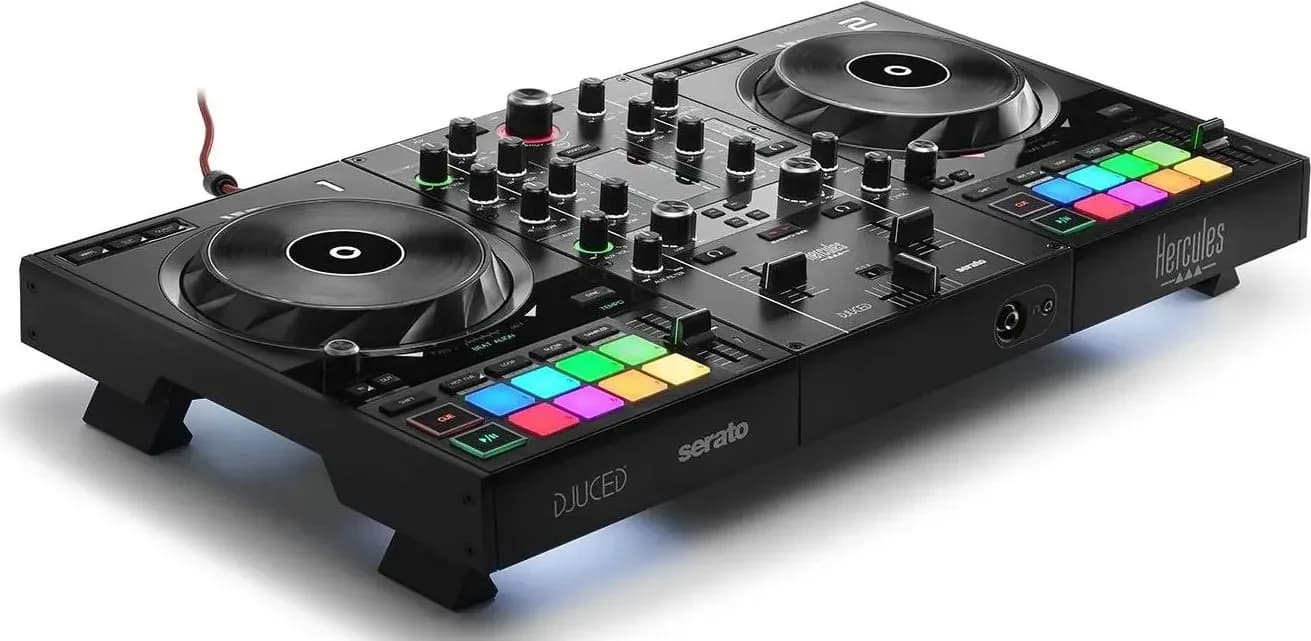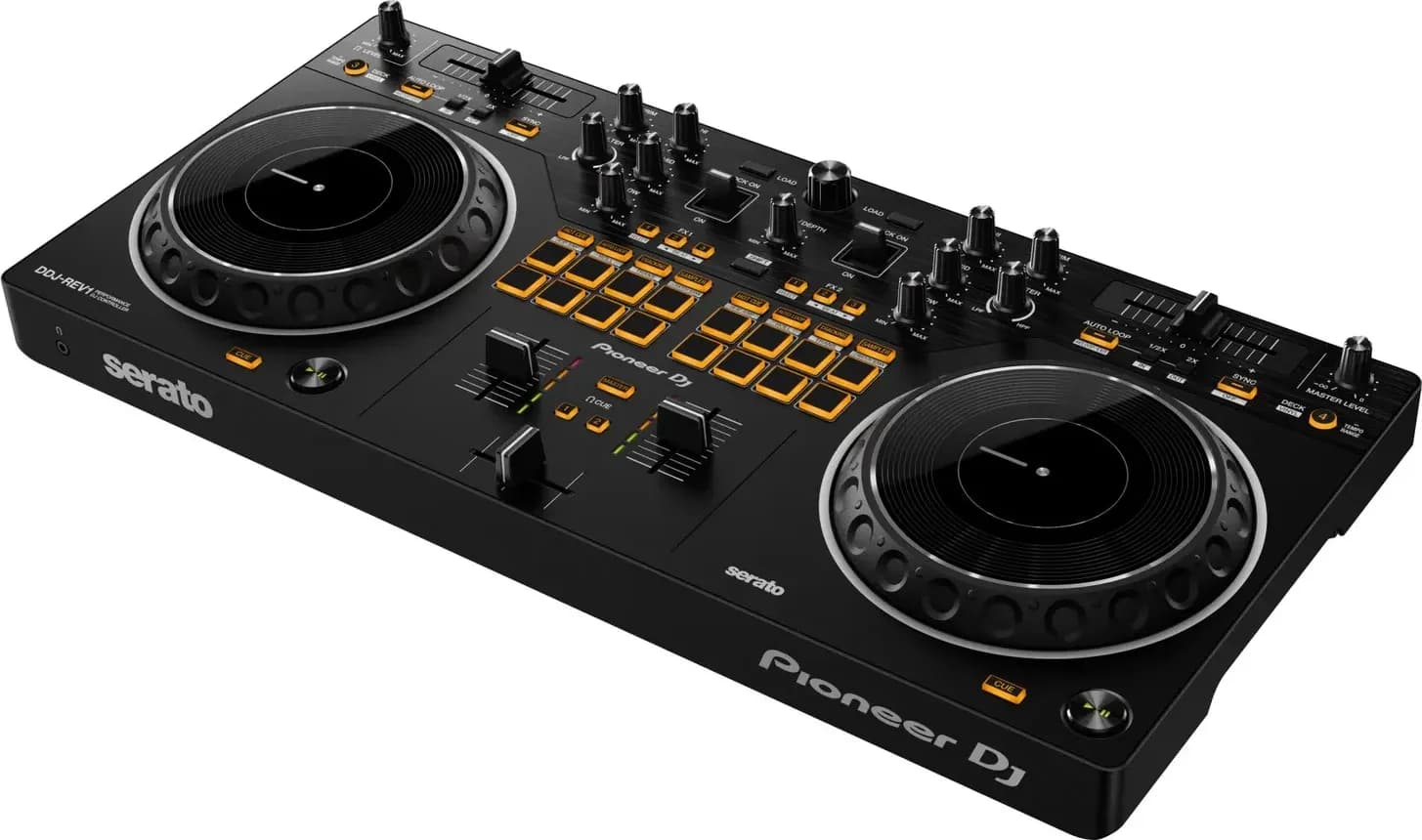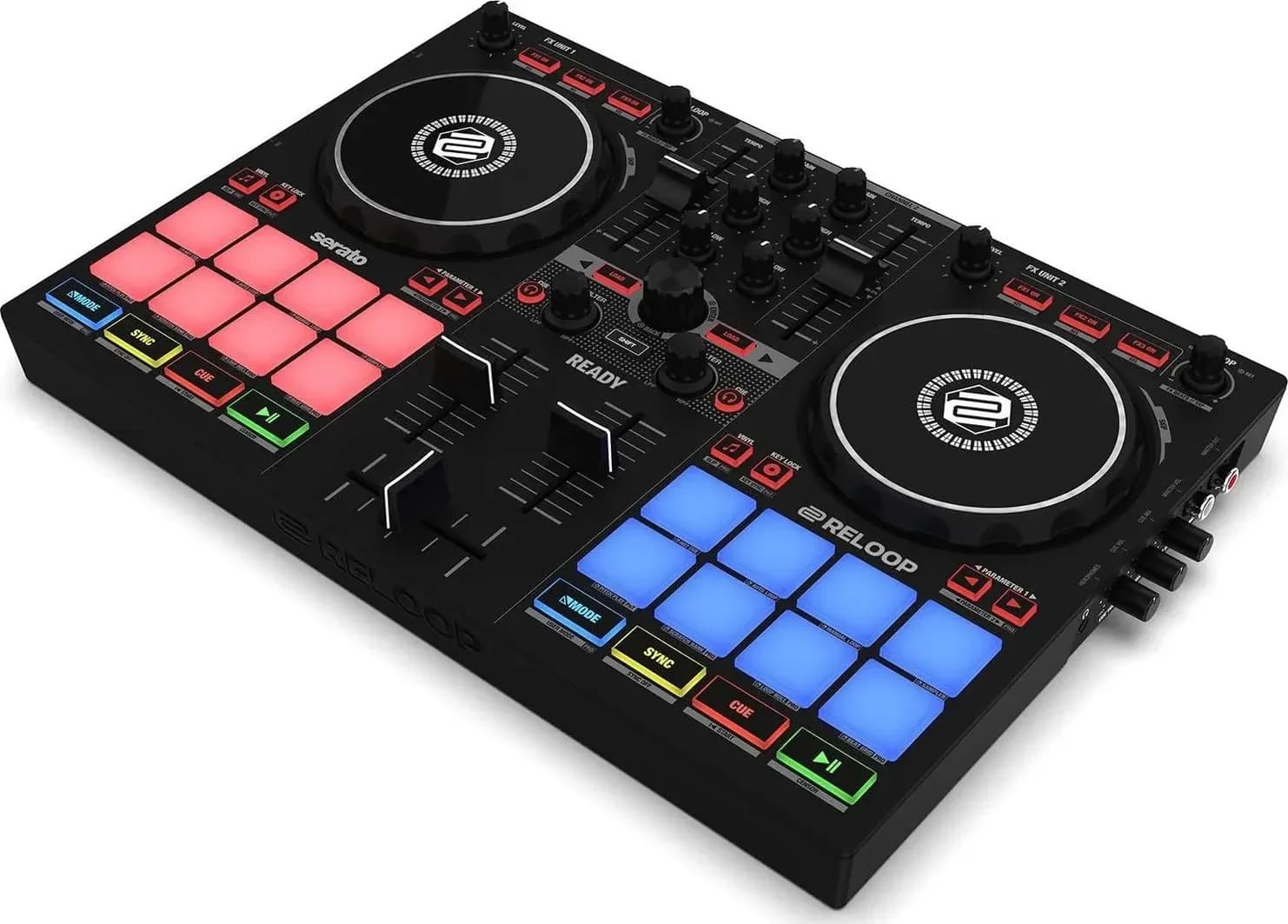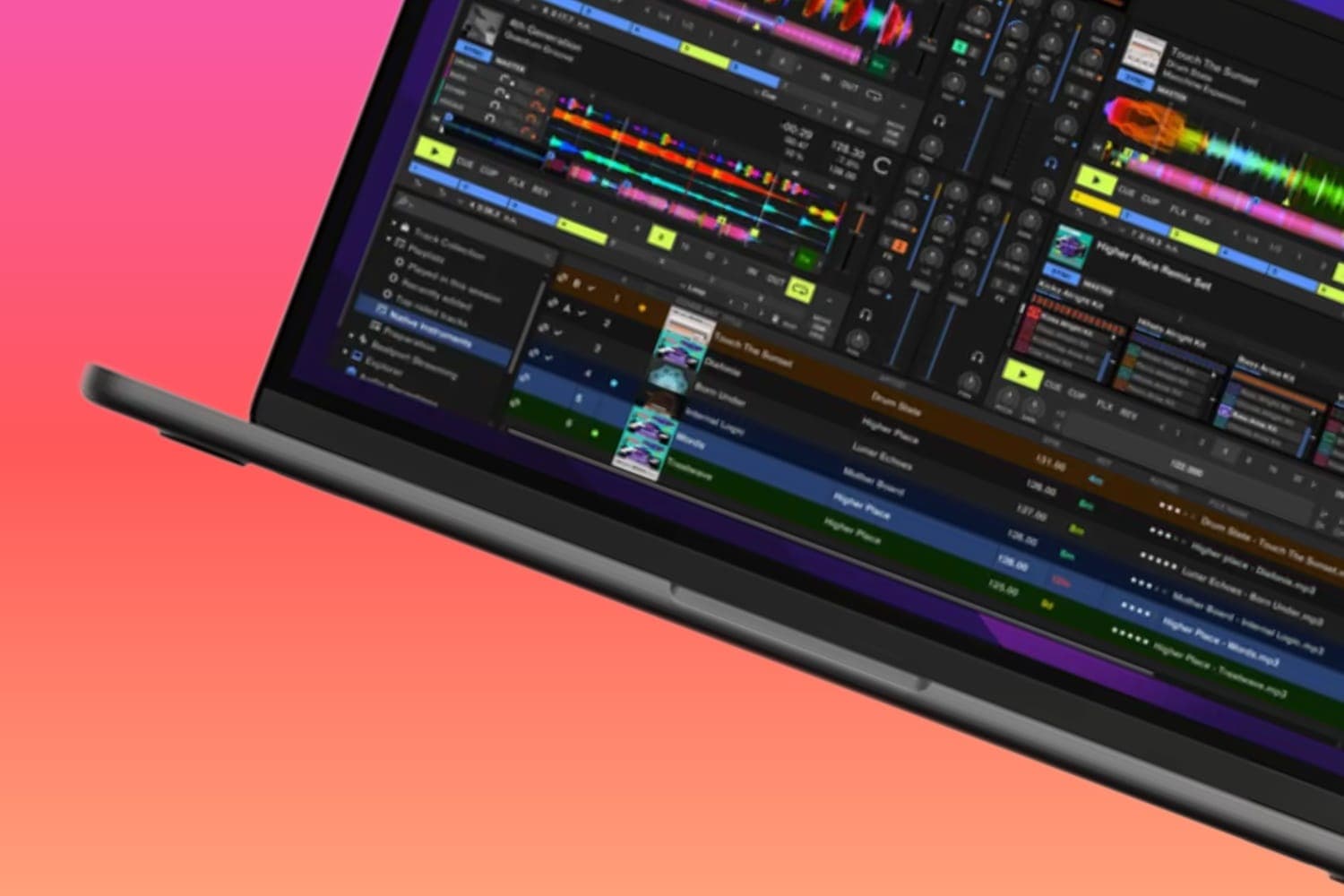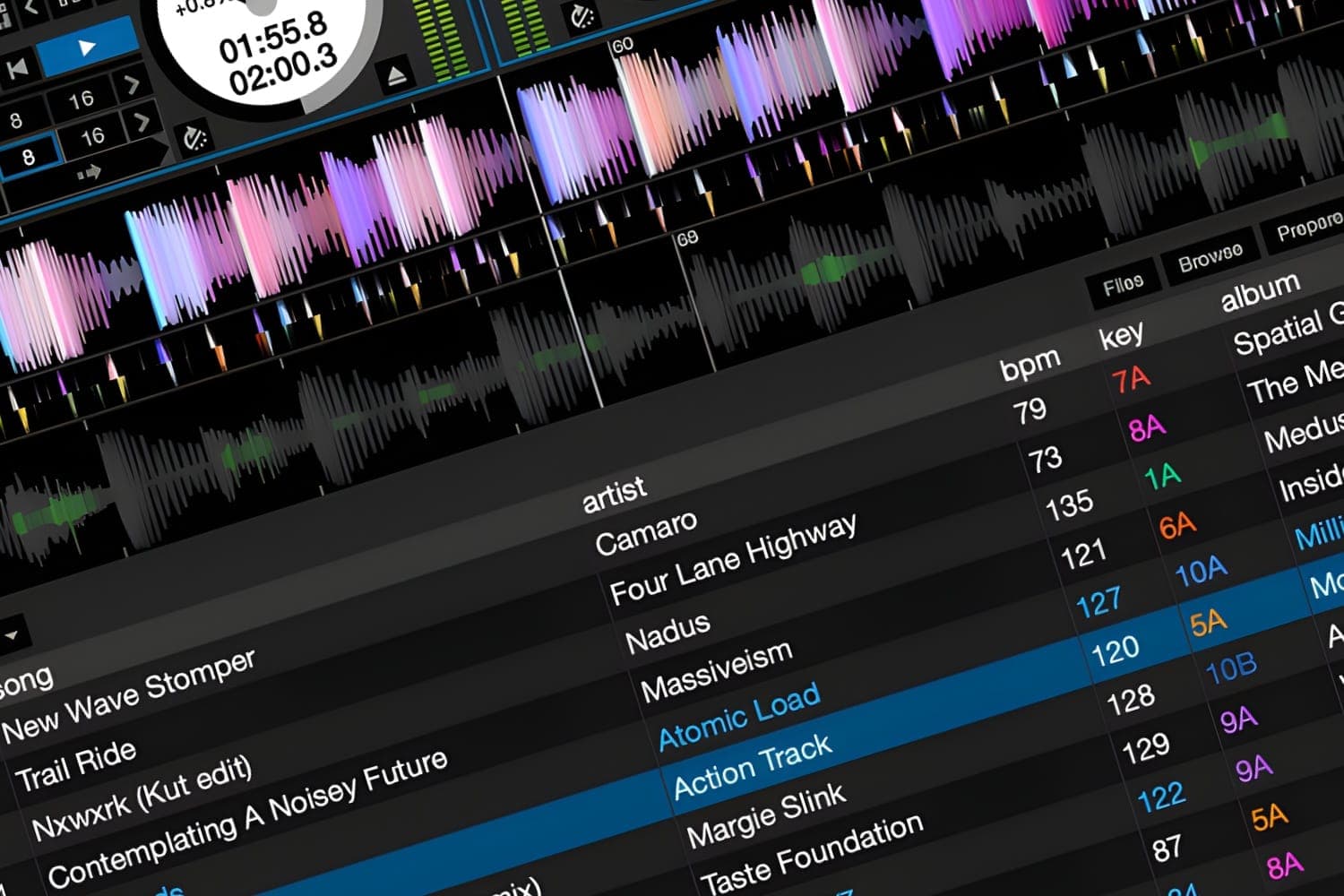
Before a gig, analyse your tracks with Set Key and Analyze BPM / Beatgrid ticked, set cue points with Quantize on, and turn on Lock Playing Deck and Playback Keys Use Shift under Setup > DJ Preferences so a stray click or key can't stop the music. In the mix, Smart Sync, Slip Mode, Censor, Loop Roll and the keyboard shortcuts save the most effort, and Ctrl + Z undoes a track load.
These tips are for Serato DJ Pro 4, which was at version 4.0.10 on Serato's download archive in October 2026, and use its menu names. Serato's shortcuts use Ctrl on Windows and Command on a Mac. Some features, including the FX panel and the Stems tab, appear only when Serato hardware is connected or the Serato Play expansion is on, and some are Pro-only; Serato DJ Lite vs Pro lists what each edition has. For the same tips in rekordbox, see rekordbox tips for playing out.
Prepare your tracks
- Analyse everything first. Analysing builds the waveform overviews, checks for corrupt files and, if you ask it to, works out BPM, key and beatgrids, which saves CPU during a set. Serato DJ Pro 4 analyses new imports by default (Analyze on Import), and you can right-click a track, a selection or a crate and choose Analyze Files. Hardware no longer has to be disconnected to analyse; that applied to version 3.3.5 and earlier.
- Check the Analysis Settings. Set Key works out each track's key, and Analyze BPM / Beatgrid sets the BPM and grid. Both overwrite manual changes when you re-analyse, so lock tracks you've already fixed. BPM Range stops half or double tempo readings: Serato's example is choosing 68–135 if tracks you want at 70 BPM come out at 140.
- Lock tracks with good grids. Ctrl + click the empty Status column, the first column in the library, to show a blue lock. Locked tracks keep their BPM and beatgrid when you re-analyse. A gold lock means Serato can't save changes to the file at all, for example because it's on an NTFS drive used on a Mac, or the file is read-only.
- Fix grids that drift. Click Edit Grid next to the track time, or press Alt + Space, then check a few points through the track, such as just after a breakdown and in the outro. Edit Grid shows only when Smart Sync, or Simple Sync with Snap to Beatgrid, is chosen under Setup > DJ Preferences. The beatgrid explainer covers why grids matter.
- Prepare stems in advance. Stems analysis normally starts the first time you use a stems control on a deck, which can delay the effect. Drag tracks into the Stems crate before the gig to prepare them ahead (it uses disk space), or turn on Analyze Stems under Setup > DJ Preferences > On Song Load to start the analysis as each track loads, at the cost of more processing power.
The BPM and key finder guide explains the key notations and when to use a separate key analyser.
Cue points and loops
- Set and trigger cue points. Each track holds up to 8, saved in the file, so they survive moving or renaming it. Click the + in an empty slot of the Cue Point tab, or press Ctrl + 1 to 5 for the left deck and Ctrl + 6 to 0 for the right. Press 1 to 5 or 6 to 0 without Ctrl to jump to them. Tick Enable Hot Cues in DJ Preferences to set cues with the number keys alone. The cue and hot cue explainer covers the difference between the two.
- Turn on Quantize. The Q button at the top of the screen snaps cue points and manual loops to the beatgrid as you set them, and snaps triggering too, so a late press still lands on the beat. Choose how many beats it snaps to with Quantize Value in DJ Preferences.
- Name and colour them. Double-click a cue point's time to name it, and right-click its trigger button to change the colour. Drag cue points to reorder them, with Sort Cues and Loops Chronologically turned off.
- Temporary cue. With the deck paused, I sets a temporary cue on the left deck and K on the right. It isn't saved to the file, which makes it useful for practising the same drop several times.
- Auto loops. In the Loops tab, pick a length from 1/32 to 32 bars, or press Alt + 1 to 5 (left) or Alt + 6 to 0 (right). The loop snaps to the beat even if you press slightly early or late, and it needs an analysed BPM. Each track can store up to 8 saved loops.
- Loop Roll. Ctrl + Alt with the same number keys plays a loop only while held, then picks the track up where it would have been. Short lengths make stutter effects.
Settings that prevent mistakes mid-set
All of these are under Setup > DJ Preferences unless noted.
- Lock Playing Deck stops you loading a track onto a deck that's playing.
- Playback Keys Use Shift means the playback shortcuts (play, pause, pitch, cue points, censor) need Shift or Caps Lock, so typing in the wrong place doesn't stop a deck.
- Track End Warning flashes the ring around the virtual deck 20 seconds before a track ends.
- Play from first Cue Point starts each track at its first cue instead of the beginning; Instant Doubles loads a track already playing on the other deck at the same position.
- Use Auto Gain sets each track's gain to a reference loudness when it loads. Serato recommends the default of 92 dB.
- Watch the master meter. The Master Output Level runs from -12 dB to +12 dB, and red segments mean Serato's limiter is working on your sound, which degrades it. Ctrl + click the control to reset it to 0 dB. The clipping explainer covers why it matters.
Ctrl + click resets other controls too, including the track gain (to 0 dB) and, in Practice mode, the crossfader and pitch.
In the mix
- Pick a sync mode. Under Sync Mode in DJ Preferences, Simple Sync matches the other deck by its transients without beatgrids; Smart Sync uses beatgrids and gives more control. With Smart Sync, pressing Sync locks tempo and bar position (Beat Sync, shown blue); touching the platter or playhead drops to Tempo Sync (gold), which keeps the tempo matched but lets you place the track where you like. Maintain Sync on Track Load keeps Sync on for the next track. See what the sync button does.
- Slip Mode. With Slip on, you can scratch, loop or hold a cue point, and when you stop, playback carries on from where the track would have been. Loading a new track turns Slip off.
- Censor. Hold Censor (U for the left deck, J for the right) to play the track backwards over a word; when you let go, it carries on as if nothing happened. It doesn't work in Absolute mode.
- Keylock. F5 and F10 turn Keylock on for the left and right decks, so changing tempo doesn't change the key. It switches off automatically while you scratch. Key Shift and Key Sync need the Pitch 'n Time DJ expansion; see mixing in key.
- Stems. The Acapella and Instrumental buttons on each deck isolate the vocals or the music at any time. With Serato hardware connected, or Serato Play in two-deck mode, the Stems tab adds pads to mute vocals, melody, bass or drums, and stem FX such as Vocal Echo and Instrumental Braker.
- FX banks. In the FX panel, set up your effects, click Save, then click bank A, B, C or D to recall that set of effects and beat values later.
- Practice without hardware. Practice mode, next to the Offline player button at the top left, mixes two tracks with on-screen faders, tempo and crossfader using the mouse and keyboard.
Keyboard shortcuts
These are from Serato's keyboard shortcut list for a US keyboard:
| Function | Left deck | Right deck |
|---|---|---|
| Load selected track | Shift + Left arrow | Shift + Right arrow |
| Play/Pause | W | S |
| Jump to cue points | 1 to 5 | 6 to 0 |
| Set cue points | Ctrl + 1 to 5 | Ctrl + 6 to 0 |
| Censor | U | J |
| Keylock | F5 | F10 |
| Loop on/off | [ | ' |
| Auto loop | Alt + 1 to 5 | Alt + 6 to 0 |
| Eject | Shift + Alt + Left arrow | Shift + Alt + Right arrow |
In the library, Ctrl + Z undoes the last track load; Ctrl + L finds the track you last loaded; Ctrl + F jumps to the search box; Ctrl + P adds tracks to the Prepare panel; and Ctrl + R shows a file in Finder or Explorer. With Serato hardware connected, the Space bar switches to the Library display mode, which gives the track list the most room. If the Serato Play expansion's own hotkeys are switched on, some of these change.
Organise the library
- Crates and Smart Crates. A track can sit in any number of crates, and you can drag crates onto each other to make subcrates. Smart Crates fill themselves from rules on fields such as BPM, Key, Genre, Comment, Added date and DJ Playcount; tick Match all of the following Rules to require every rule.
- Favourites and crate tools. In Serato DJ Pro 4, right-click a crate and choose Add To Favorites to pin it to the top of the crate list. Right-click a track and choose Show in Crates to see every crate and playlist it's in. Crate Search finds a crate by name.
- Prepare panel. Ctrl + P queues tracks for the set like records pulled half out of a bag. Tick Tracks remain in Prepare Panel under Setup > Library + Display if you don't want played tracks to drop out of it.
- History. The History panel logs every session by date. Export a session as a text, CSV or M3U file, or drag it onto the + crate button to make a crate of what you played. Serato counts a track as played once its fader is up and the crossfader is across to it.
- Backups. Serato keeps its library in the Serato folder in your Music folder, plus one on each external drive you've added music from. It backs the database up 15 minutes after you open the library and every 24 hours after that. There's no restore button: to roll back, close Serato and copy the backup over the database by hand, which overwrites any changes since.
Record your set
Click REC at the top left to open the recording panel, choose MIX as the source to record the master output, and set the level so the meter sits high in the yellow without reaching red. Click REC to start and stop, type a file name and click SAVE. Choose AIFF or WAV and 16 or 24 bit in the Setup screen. Recording is a Serato DJ Pro feature, not in Lite.
Expansions
The Expansions button at the top right opens Serato's store. Serato Video, Pitch 'n Time DJ (for Key Shift and Key Sync), Serato Flip (recorded cue point edits), the DVS expansion for turntables and CDJs, Serato Play and extra FX all come in Serato DJ Suite, and some hardware unlocks one or more of them. Serato DJ Lite vs Pro explains the licences, the digital vinyl systems guide covers turntable setups, and the best Serato controllers guide covers hardware.
How this page is made
Every setting and step on this page comes from Serato's online Serato DJ Pro manual, read on 13 October 2026, including its pages on analysis settings, analysing files, DJ Preferences, Library + Display, crates, stems, history, library backups and expansions. The shortcut list was last updated by Serato in March 2023, so check a shortcut on your own setup before relying on it at a gig. Menu and setting names are as Serato DJ Pro shows them in English. The methodology explains how the site works.