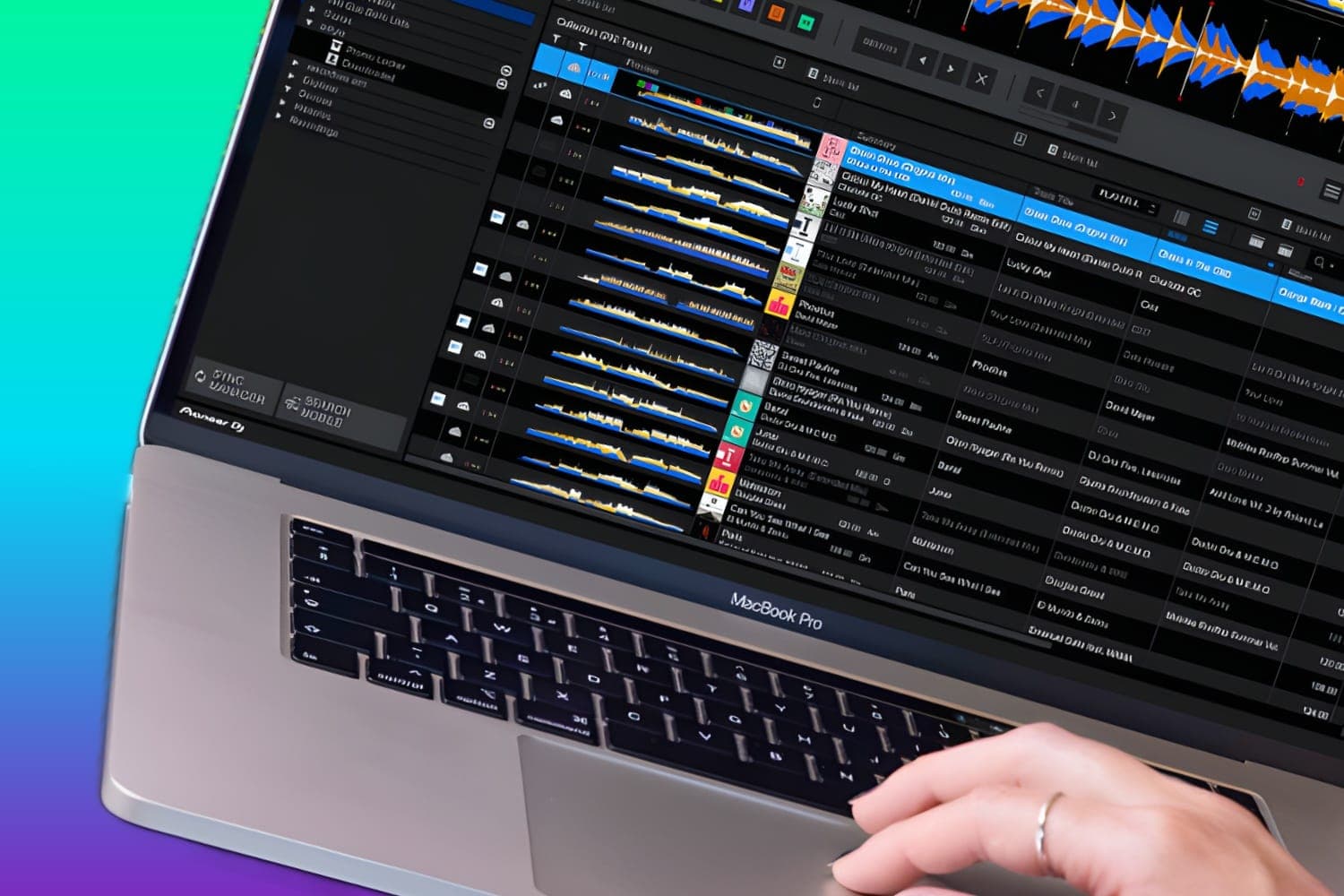
Keep your music in one folder before you import it, set rekordbox's analysis options, then sort the Collection into playlists inside folders, letting Intelligent Playlists, My Tag, colours and ratings do the filtering. Use File > Display All Missing Files and Display All Duplicated Files to keep the library clean, and File > Library > Backup Library to back it up.
The steps below are for rekordbox 7 on Mac and Windows, and the menu names are as they appear in it. This page is about building and maintaining the library. For using it at a gig, from cue points and CDJ settings to sync and keyboard shortcuts, see rekordbox tips for playing out. If you're new to the software, start with what rekordbox is.
Before you import
rekordbox keeps a record of where each music file is stored. If you rename or move files or folders after importing them, it can no longer play them and marks them as missing, its manual explains. So settle where your music lives first:
- One music folder, on the drive you'll keep it on. Subfolders inside it are fine. A library spread across the desktop, the downloads folder and old drives is the one that breaks when you change computer.
- Fix the tags first. rekordbox reads title, artist, genre and the rest from the file's own tags: ID3 tags in MP3 and AIFF files, the meta tag in M4A, Vorbis Comment in FLAC and RIFF INFO in WAV. The manual warns that a WAV file's tag information may not be displayed, which is worth knowing if you buy music as WAV. If you edit tags in another app later, right-click the track and choose Reload Tag; this replaces any edits made in rekordbox.
- Removing a track never deletes the file. Remove from Collection takes it out of rekordbox only.
Import and analyse
Set the analysis options first
Open Preferences > Analysis > Track Analysis before a large import:
- Track Analysis Mode. Normal suits tracks with a steady tempo, and you set the BPM Range it looks in. Dynamic is for tracks with significant tempo changes. Auto is available only when Use high precision BeatGrid analysis is on, which the manual says gives more accurate results at the cost of slower analysis.
- Track Analysis Setting. Tick BPM / Grid, KEY, Phrase and Vocal. Phrase and Vocal analysis let rekordbox show song sections and vocal parts on the waveform.
- Auto Analysis. Set to Enable, so tracks are analysed as they're imported.
Key appears as Classic key names or in Alphanumeric notation (such as 1A and 2A); choose under Preferences > View > Display Type > Key display format. The guide to mixing in key explains what to do with it.
Import
- Files or folders. File > Import > Import Track or Import Folder, or drag files and folders from Finder or Windows Explorer into the track list.
- A folder as a playlist. Turn on Explorer under Preferences > View > Layout > Media Browser, then drag a folder from Explorer onto Playlists. rekordbox makes a playlist with the folder's name.
- From Apple Music. In the Music app, choose File > Library > Export Library. In rekordbox, open Preferences > Advanced > Database, and under iTunes, click Browse next to iTunes Library File and choose the file you exported. Your Music library and playlists appear under iTunes in the tree view, and you can drag playlists under Playlists.
Check the beatgrids
Sync, quantize and beat-synced effects all depend on the grid; see what a beatgrid is. Fix a wrong grid in the GRID panel of the 1 PLAYER layout, then turn on Analysis Lock (right-click the track) so a later re-analysis can't overwrite your edit. Tracks analysed by an old version of rekordbox may show a question mark; right-click them and choose Add New Analysis Data.
Playlists and folders
- Make a playlist with the plus sign beside Playlists in the tree view, name it, and drag tracks into it. Open the sub browser to drag between two lists side by side.
- Group playlists in folders. Right-click Playlists > Create New Folder. Clicking a folder shows every track in the playlists inside it.
- Find playlists fast. Turn on Playlist search filter and Display the number of tracks in a playlist on the Tree View under Preferences > View > Layout. You can also pin up to eight folders or playlists as shortcuts at the top of the Media Browser.
- Work from several playlists at once. Turn on Playlist Palette under Preferences > View > Layout, then drag playlists into it to see up to four side by side.
A simple structure: a folder per genre or purpose, a playlist per gig, and one playlist for new music you haven't sorted yet. Whatever you choose, the playlists are what you export to a USB stick, so name them the way you'll want to read them on a player's screen.
Intelligent Playlists
An Intelligent Playlist fills itself with every track that meets the conditions you set, including tracks you import later. Right-click Playlists > Create New Intelligent Playlist, pick a field and a condition, and add more with the plus sign:
- Conditions include equals, contains, starts with, is in the range (for BPM) and is in the last (for dates, in days or months).
- Match all of the following conditions narrows the list; Match any widens it.
- Examples: BPM in a range for a warm-up list; a genre plus a release date in the last three months for new music; a My Tag value for every vocal track.
To change one later, right-click it and choose Edit the Intelligent Playlist.
My Tag
My Tag lets you label tracks with your own categories, beyond genre. Open it from View > My Tag Configuration Window, or the icon at the right of the screen. Rename the categories and the tags inside them to suit you, and add tags with the plus sign. To tag a track, select it and tick the boxes; a track can carry several tags.
Useful categories describe how you use a track: energy, mood, vocal or instrumental, where it fits in a set. To find tracks by tag, open the track filter at the left of the search box. It filters by My Tag, BPM, KEY, RATING and COLOR together, with AND or OR between tags, and RST clears it. If you want the tags visible elsewhere, Preferences > Advanced > Browse > My Tag adds them to each track's comments.
Colours, ratings and columns
- Colours and ratings. rekordbox has eight track colours and a five-star rating. Both are filters in the track filter, and a loaded track's colour, rating and comment show in its INFO panel. Decide what each colour means and write it down under Preferences > Advanced > Browse > Color, which edits the colour comments that Pioneer DJ players show when you browse by colour.
- Columns. Right-click any column header to choose which columns show, such as Color, Rating, My Tag, Key or Date Added, and drag headers to reorder them. Clicking a header sorts by it; click again to reverse.
- Collection Filter. Selecting Collection in the Media Browser shows Date Added, Genre, Artist and Album in the tree view, so you can browse the whole library by any of them.
Missing and duplicate files
- Missing files. File > Display All Missing Files lists every track rekordbox can't find. Set up Preferences > Advanced > Database > Auto Relocate Search Folders, tick User specified folders and add the folders or drives where the files now are, then click Auto Relocate. To point a track at its file by hand, right-click it and choose Relocate. If you select several tracks at once, rekordbox relocates them all to the folder of the first.
- Duplicates. File > Display All Duplicated Files lists tracks with the same title and artist. Delete the copies you don't want, or use Merge Duplicate Files to combine them into one.
- Accidental edits. Library Protection, under Preferences > Advanced > Browse, stops track information and lists being edited or deleted by mistake.
Back up and move the library
- Back up. File > Library > Backup Library saves the Collection, playlists and analysis data, and asks whether to back up the music files too. Say yes when you're moving to a new computer. A backup made on a Mac restores on Windows and the other way round, through File > Library > Restore Library. To restore the music as well, the rekordbox_bak folder must sit at the same path as the backup file.
- Run the library from an external drive. Under Preferences > Advanced > Database > Database management, you can move rekordbox's master database to an external device, along with the analysis files. With the database on the same drive as the music, you can manage the library from different computers. The guide to external hard drives for DJs covers the drives.
- Other apps. File > Export Collection in xml format writes the whole library, playlists included, as one XML file that other DJ software can read.
Cloud Library Sync, which syncs the library between computers and phones through Dropbox or Google Drive, depends on your rekordbox plan; AlphaTheta's plan comparison lists what each includes.
Get it onto a USB stick
To play on Pioneer DJ or AlphaTheta players, drag playlists onto the stick under Devices, and rekordbox copies the tracks with their analysis, cues and playlists. Since rekordbox 7.2.11, an export writes both library formats, OneLibrary for newer players and the Device Library for older ones, per AlphaTheta's USB Export Guide. The guide to the best USB sticks for DJing covers formatting and which stick to buy, and rekordbox tips for playing out covers the player settings that travel with the export.
How this page is made
Every step on this page follows AlphaTheta's rekordbox 7 Instruction Manual (the edition for version 7.2.18) and its USB Export Guide, read on 12 October 2026, when the current release was rekordbox 7.2.19. Menu and setting names are as rekordbox shows them in English. AlphaTheta notes that some functions depend on your subscription plan and may change between versions. The suggested playlist structure and My Tag categories are ours; the rest is the manual's. The methodology explains how the site works.