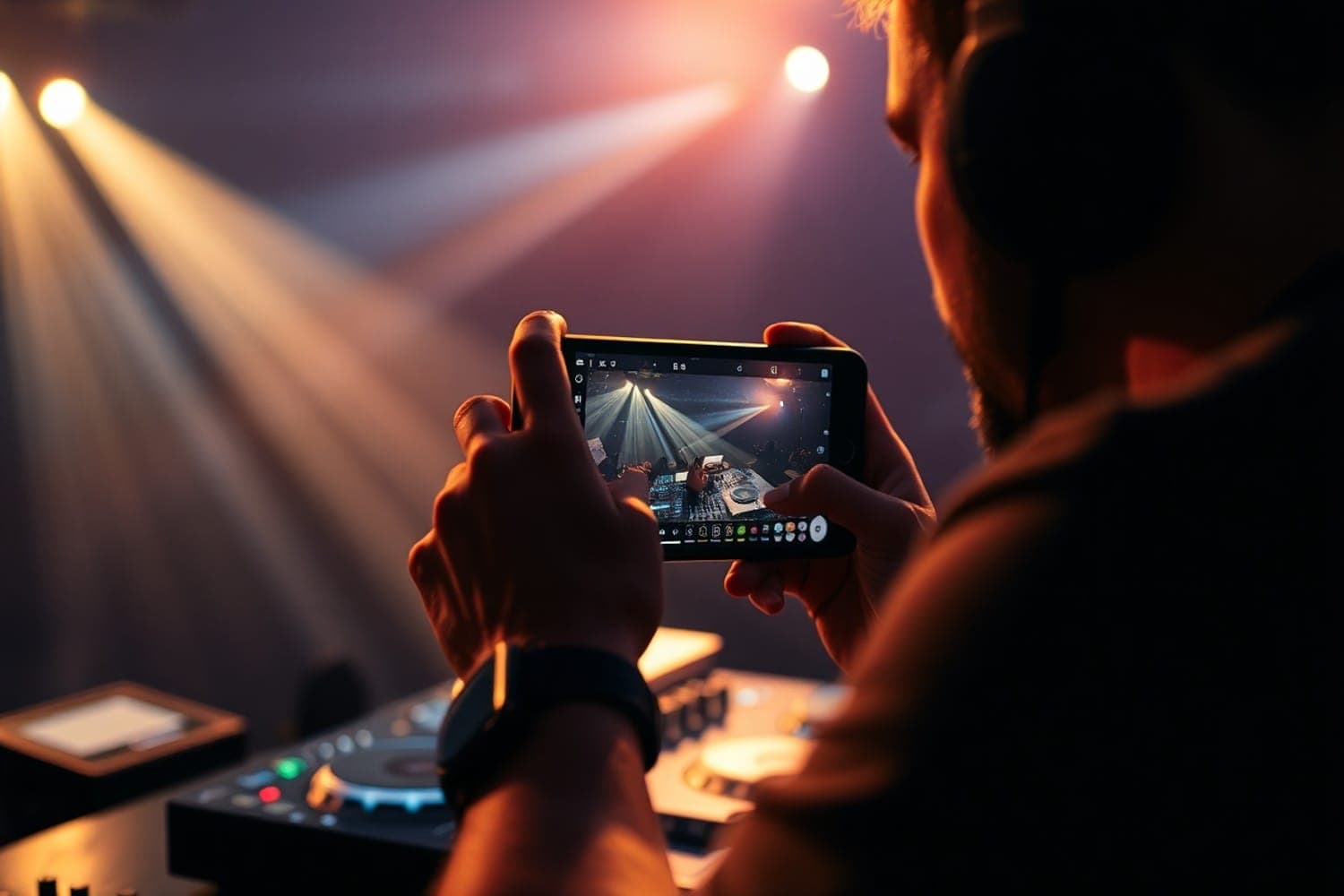
With the world becoming what it is today (in no small part thanks to the Covid-19 pandemic), there have been a lot of disruptions to our society, many of them being for the worse.
One of the few places that actually benefited from the global pandemic, interestingly enough, was none other than the online segment of the DJ industry. Whilst clubs and bars were hammered by closures and loss of revenue the use of live streaming helped DJs around the world grow followings and become well-recognized.
Today, it’s almost commonplace to find that a DJ artist has an online streaming presence of some kind.
By being able to perform live online, an artist can greatly expand their reach outward to numerous people from around the world, something that in-person performances simply can’t replicate.
If you are a DJ that is looking to expand your online presence, it only makes sense that one of the first places you’ll look out for is the social media juggernaut, Instagram .
However, just because that is an online platform that exists doesn’t mean it’s one open to DJs or available for performing live.
In this article overview, we’ll go over whether you can (or can’t) use Instagram and Instagram live as a viable method of DJing , as well as how to do it if it is indeed possible.
Can I DJ Live on Instagram? (In Short)
DJing on Instagram live is pretty straightforward, but it does come with some copyright hurdles that you will potentially have to deal with.
Ultimately, of course, you can DJ live on Instagram. In fact, there is a multitude of ways you can deliver an Instagram Live performance to your online audience.
And don’t worry if you are just starting out, even if you have a fairly limited home DJ set up you will be able to begin your start Djing on Instagram Live.
RELATED ARTICLE: How To Livestream Your DJ Sets In A Few Easy Steps
DJing on Instagram Live: Is it Even Possible?
Before we can go over anything else, we need to determine if it’s actually even possible to use Instagram as an online DJ streaming platform.
Well, as it turns out, Instagram is definitely one of the methods available for DJs that want to perform online. This is largely thanks to the platform’s more recently added feature, “Instagram Live”.
It’s very similar to Facebook LIVE .
What Is Instagram Live?
Instagram Live is a feature available on Instagram that essentially allows you to interact with an audience in real-time.
When it comes to those specified in the DJing world, Instagram Live works by allowing live performances that are streamed out and available to anyone interested in watching, all of your followers getting immediately notified at the time of the event.
While it is a great tool, regardless of your profession or industry, Instagram live can be an especially useful method for DJs, as they are able to extend their musical prowess to all corners of the globe simultaneously, growing their audience in ways they’d have never thought possible.
Still, while we now know that DJing with Instagram and Instagram live is possible, that is only half of the equation.
From the other side, it’s just as important that we know how it is that a DJ can use the platform and make it work for themselves.
How To Use Instagram Live To DJ
While it may seem a bit complicated, the reality is that live streaming on Instagram live is actually quite easy. By following a few simple steps, you can be setting up a Livestream for your audience in as little as a few hours from now.
Step #1. Download Instagram On Your Phone
The first thing you’re going to need to do is to have Instagram as an app on your phone. You can get this in the app store from Google Play as well as the Apple store.
To use Instagram live, you’ll need to be signed into an account with Instagram. This process is fairly straightforward and can be done in about five minutes.
Step #2. Properly Set Up Your Performing Space
Before going live, you need to make sure your performing space is as prepared and established as possible.
This means your performance space should be as clean and as put together as possible. It also means you should ensure that your phone’s microphone will be able to easily pick up everything you’re putting out.
You’ll also want to make sure the phone is properly positioned so that you’re not having to continually adjust and readjust your phone.
Getting it good right from the start is a true mark of a quality DJ.
Step #3. Go “Live”!
Once you’ve got Instagram set on your phone, and have your performing setup as well put together as possible, it’s not ready to go “Live”.
To do this, you’ll tap on the icon at the top right of the homepage.
From there, select the “go live” option. This will turn on your phone’s camera, putting you on display automatically.
At the bottom of the page, you’ll find a large red button that, when pressed, will instantly cause you to be live and streaming.
Once you’re ready to end your stream, simply press the “stop” button where the record option just was.
Unlike other venues, where the video is stored before actually going live, here you are automatically live from the moment you press the button, so make sure you always keep that in mind.
And with that, you will officially have set up your performance and completed your very first live and online performance.
As you can see, the process is fairly easy when broken down and explained properly. Not only that, but you can expect going live to be pretty fun when you start using it.
Below are some ways you can improve your streaming quality so that your performance is as good as possible whilst live.
Stream To Instagram From OBS
Now that you understand that you can DJ on Instagram, as well as how to get started, it’s worth looking into a way to keep your streaming quality as good as possible while performing.
Without a doubt, one of the best ways to do that is actually none other than the open-source platform known as OBS.
What Is OBS?
OBS is also known as “Open Broadcaster Software.”
OBS is a great option for those that want a way to play across multiple screens and platforms, all without paying a single cent. OBS can be used entirely from the computer and offers a ton of different streaming options.
Some of these options include on-screen logos, picture-in-picture setups, as well as a much higher resolution quality for audio and video. In addition, you can also use some of OBS’s different features to play your live feed out to any of your other social media platforms.
This is done using OBS’s RTMP, or “Real-Time Messaging Protocol”.
Below, we will go over how you can get started using OBS and its software to improve your overall live streaming DJ performance.
Getting Started With OBS
Step #1. Download OBS
The first thing you’ll need to do is download the OBS software.
Once you’ve downloaded it from the website, simply follow the installation and setup options to have it put on your computer for use.
Step #2. Use OBS For Stream Optimization
Once the software is part of your computer, you’ll immediately want to select “Optimize for Streaming”.
From there, you will check out the “Canvas” size. This makes sure that the streaming resolution is around the same for everyone that logs in.
Just keep in mind that various things, like the graphics card, internet speed, as well as the quality of your computer, all play an important role in determining what your video quality should be for your audience.
Step #3. Set Up Your Camera & Audio
Next up is to bring in cameras and audio to further optimize your streaming experience.
To do this, you’ll want to click on the “+” icon under “Sources”. From there, click on the “Video Capture Device” and “Audio Input Capture” options to add your camera and audio sources to your online DJ performance.
Should You Even Use Instagram Live To DJ?
As you can clearly see, Instagram Live has a ton of perks for DJs out there.
Not only is it incredibly easy to set up and start, but, with OBS, you are able to make some visually and auditorily stellar sounds and visuals.
But does that mean you should use the platform to DJ?
The reality is that, while it may be a bit unorthodox to think about, online streaming and live streaming DJ performances are already a thing.
By leveraging Instagram’s massive audience and reach, alongside their easy method of starting a live show for a performance, you can potentially establish quite the career as an online streaming DJ.
How to Play Music on Instagram Live Without Copyright
There are several ways to avoid copyright on Instagram live but it is still a difficult tightrope to walk.
1. Do not play any copyrighted music in your live stream.
2. Ensure sure that you have the right to use any copyrighted material that you do use in your live stream.
3. you can use a music service provider, such as MusConv or Trayplay, that assists you in legally transferring copyrighted music from one streaming platform to another.
Can I DJ Live On Instagram: Takeaway
Ultimately, there are a lot of different ways a DJ can make its mark on the world.
Now that restrictions have lifted, you certainly don’t “have” to Livestream if you don’t want to, nor is Instagram Live the only highly populated DJ streaming platform out there ( I’m looking at you, Twitch ).
Still, while many of these things are true, they don’t do anything to lessen the incredible use and value that can come from utilizing Instagram and Instagram Live as a DJ.
Especially when starting out, Instagram Live can be an even more engaging way for audiences to interact with you when compared to bigger-named streaming platforms out there.
Simply put, by understanding what Instagram and Instagram Live offer you as a DJ, as well as the process for using it if you want, you are able to open up another viable door to becoming a prominent DJ, which should never be disregarded.
After all, with the world-changing the way that it is, there’s a good chance that, not too far into the future, it’ll be a virtual requirement for DJs to have at least some online live streaming done.
We’re already heading there. You might as well start that off with Instagram.
RELATED ARTICLE: IK Multimedia iRig Stream Review (2022)