Beatport DJ is a free two-deck DJ app that runs in a desktop web browser at dj.beatport.com: a free Beatport account plays 30- to 120-second previews, and any Beatport Streaming plan, Essential included, plays full tracks. Beatport describes it as a tool for discovering and trying tracks before you buy or playlist them for your main DJ software, not a replacement for that software.
What you need
- A desktop or laptop browser. The app runs in any browser, but Beatport recommends Google Chrome or Microsoft Edge for low-latency audio and MIDI. It works on Windows, macOS and Chromebooks, and it isn't built for phones: there is no iOS or Android version. In Chrome you can install it as a desktop app from the install icon in the address bar, so it runs in its own window.
- A Beatport account. Sign up free at dj.beatport.com. You can browse without logging in.
- A Beatport Streaming plan for full tracks. What each level gets you in the app:
| Account | In Beatport DJ |
|---|---|
| Free account | The whole catalogue as 30- to 120-second previews, playlists, and a cart |
| Essential | Full tracks in high quality, B2B Mode, and DJ controllers in the app |
| Advanced, Professional, Professional+ | The same in the app; these plans add streaming into other DJ software and hardware |
Two features of the higher plans don't reach the app: per Beatport's plan page, the 1,000-track offline library and lossless FLAC streaming aren't supported in Beatport DJ, so the app needs an internet connection to play. Every plan starts with a 30-day free trial that needs a payment method. The Beatport Streaming review covers the plans in full.
Beatsource DJ, the open-format version of the app, is moving into Beatport DJ along with Beatsource's accounts and playlists; the migration was due to finish in early May 2026. Beatport DJ's Discover page now has Electronic and Open Format tabs.
Set up your audio
Open Settings and choose Audio. The Headphones setting decides where the next track goes while the current one plays through the speakers. Pick the one that matches your gear, per Beatport's setup guides:
- 1) No Preview. Everything comes out of one stereo output. Use it for listening and digging without headphones.
- 2) Bluetooth | Secondary Sound Card. Speakers on one sound card, headphones on a second device, which can be Bluetooth headphones. Beatport warns that Bluetooth adds latency and says to set the Latency setting to High; see whether you can DJ with Bluetooth headphones.
- 3) DJ Controller | Multi-Output Sound Card. Speakers and headphones both come from a controller with a built-in sound card, or an audio interface with more than one output.
- 4) External Audio Mixer. Deck A and Deck B each get their own stereo output, to mix on a hardware DJ mixer.
- 5) Y-Splitter (Mono). One output split by a Y-cable: the left channel feeds the speakers in mono and the right channel feeds wired headphones in mono.
Settings 3 and 4 need the browser to see every output on the device. If only one stereo output shows up, Beatport says to change the operating system's speaker setup, because the app reaches your sound card through the browser rather than directly:
- macOS: open Audio MIDI Setup, right-click the controller and choose Use This Device For Sound Output, click Configure Speakers, choose Quadraphonic instead of Stereo, and click Apply.
- Windows 11: search for
mmsys.cpl, select the controller, click Configure, choose Quadraphonic, keep every speaker selected, and finish. - Restart the DJ App.
Windows 7, 8 and 10 enable every output by default, per the same page. Settings and play history are stored in the browser, not your Beatport profile, so clearing the browser's cache or switching browsers resets them. MIDI mappings are the exception: Beatport says changes to them are saved to your profile.
Connect a controller
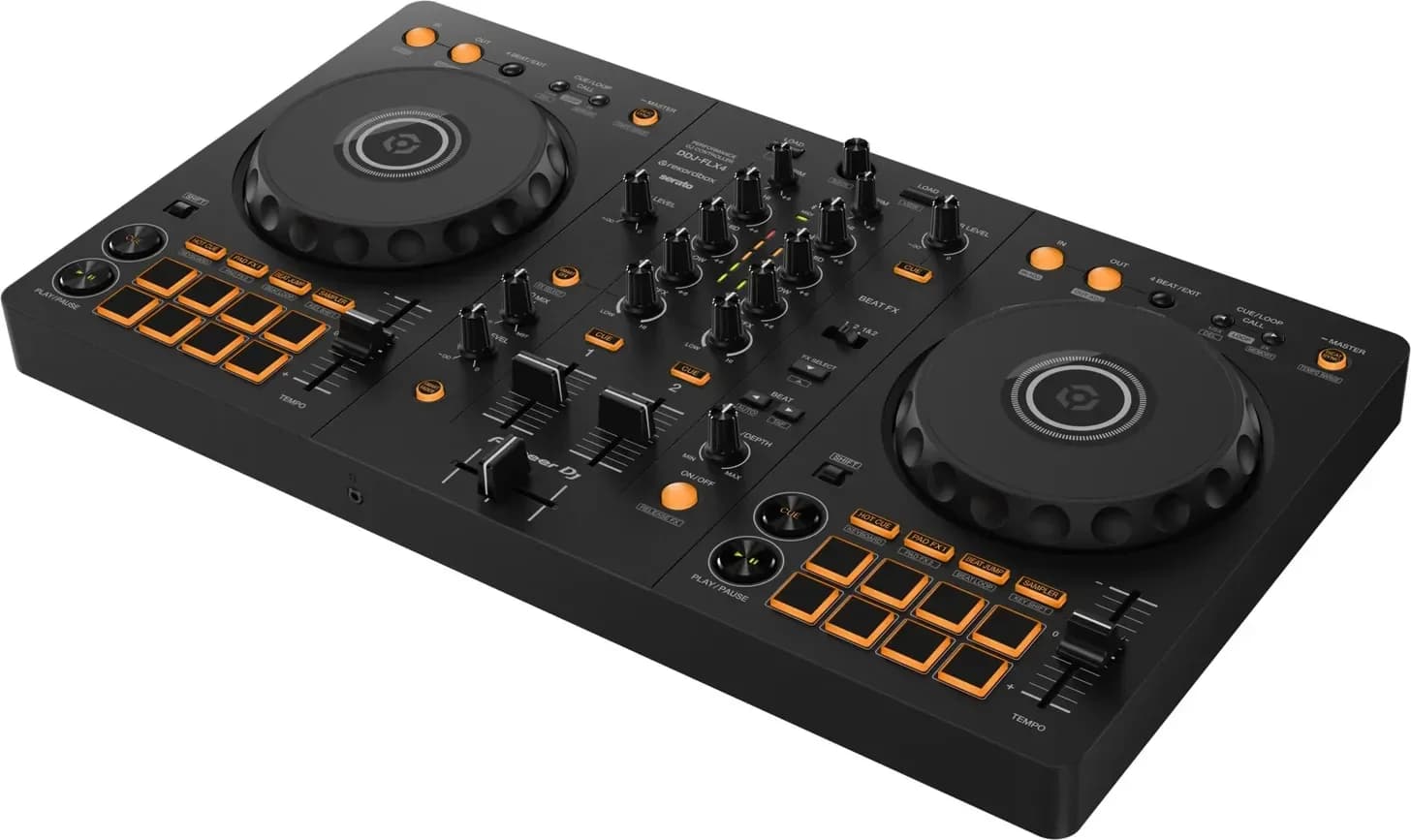
Beatport DJ works with any MIDI controller, and Essential is enough to use one, per Beatport's hardware FAQ. Its list of unofficially supported hardware, dated June 2024, includes the Pioneer DJ DDJ-FLX4, DDJ-400, DDJ-FLX6 and DDJ-200, the Numark Mixtrack Platinum FX, the Hercules DJControl Inpulse 500 and the Traktor Kontrol S2 MK3, alongside older models from most makers. Some controllers need manual mapping in Settings, under MIDI, and VU meters and screens on the controller may not work.
If the app doesn't see the controller, Beatport's troubleshooting steps are: restart the computer and relaunch the app, check the computer itself recognises the controller, close any other program using it, make sure it is in MIDI mode rather than HID mode, and reconnect it.
Mix a first blend
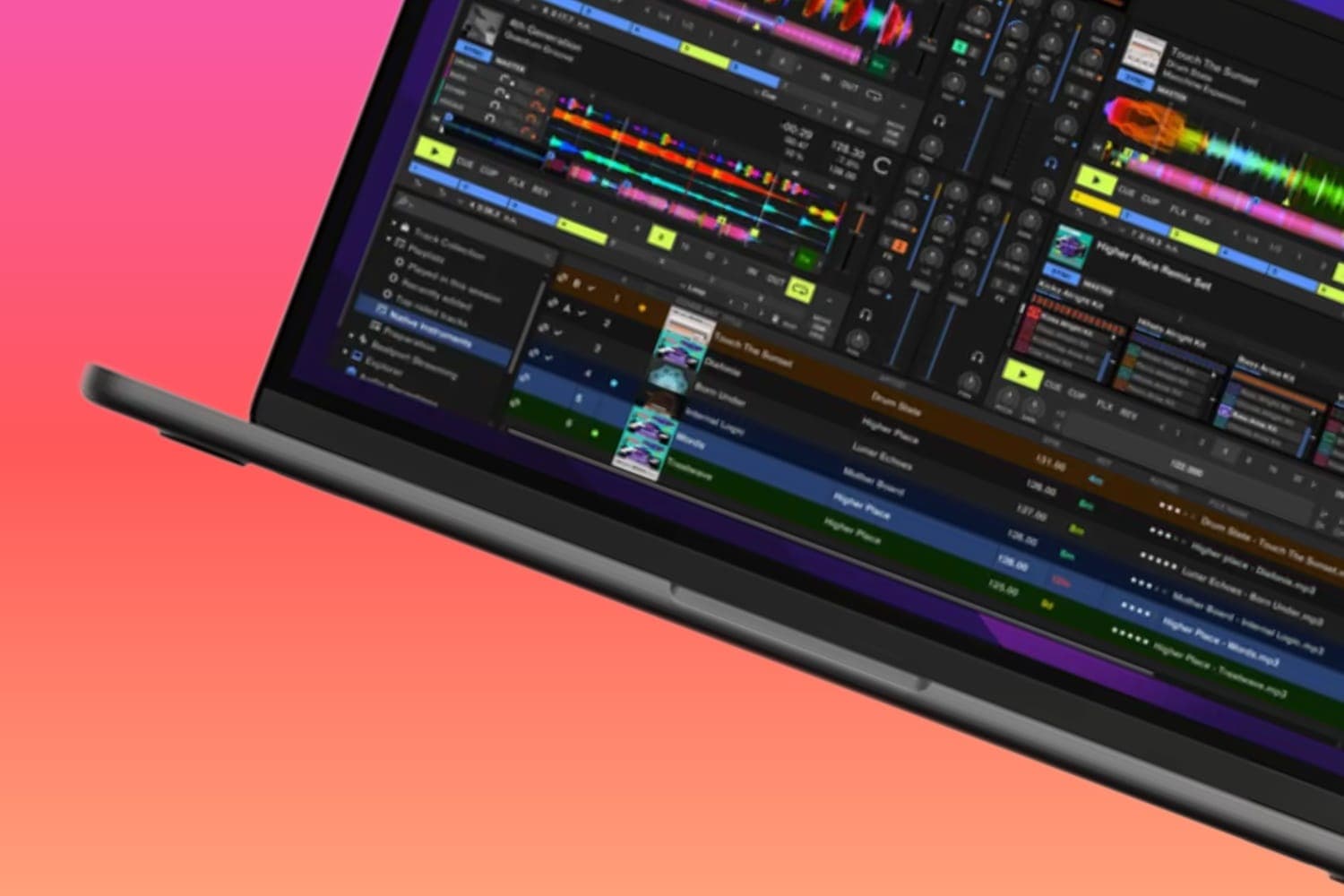
The decks sit across the top of the screen with the browser underneath.
- Load a track. Each track in the browser has a left and a right arrow that load it to that deck. You can also drag a track onto a deck or a playlist, and tap a track's cover art to preview it before loading.
- Match the tempo. Press Sync on both decks to lock them to the master BPM shown at the top, or match by ear with each deck's tempo slider; the sync button explainer and how to beatmatch cover both.
- Set cues. Cue works as on a player, and each deck has eight hot cues. Cues snap to the beat grid unless you turn on Unquantized cues.
- Blend. Each channel has Gain, High, Mid, Low and Filter knobs and a channel fader, with a crossfader between the decks.
- Add loops and effects. Each deck has a loop button and a beat jump, each with arrows to set its length in beats. FX opens a touch pad with ten effects: Echo, Looper, Reverb, Pitcher, Brake, Slicer, Crusher, Flanger, Reverse and Noise.
Press Shift and ? to see the keyboard shortcuts.
Player Settings
Under Settings, Player holds the options that change how the decks behave. Beatport defines them as:
- Auto-play track: a track starts playing on load if the deck was already playing.
- Lock active deck: a playing deck won't take a new track until you stop it. Turn this on before you play to anyone.
- Timestretch: tempo changes don't change the key.
- Vinyl slowdown effect: pausing slows the track to a stop like a turntable.
- Auto BPM: with Sync on, the master BPM follows both tracks and the fader positions.
- Automix short transition and Automix deck control: shorter Automix blends, and decks you can work during Automix.
- Unquantized cues: cue points no longer snap to the beat grid.
- EQ standard: when off, turning an EQ knob down kills that frequency band.
- EQ hold: keeps your EQ settings each time a track loads.
Find music
The left-hand menu holds Discover, Genres, My Beatport, Collection, Cart, Recently played and your playlists, with a B2B Mode tab at the top.
- Discover and Genres carry Beatport's charts, including the Top 100s and Hype Top 100. Dig Deeper holds playlists that Beatport's staff update frequently, and DJ Charts made by artists and users are only in this app, not in DJ software integrations.
- Collection lists every track you have bought on Beatport, ready to play.
- Recently played lists your history, kept in the browser like your settings.
- Playlists from other services come in through Beatport's partners Soundiiz and TuneMyMusic.
Automix
Press Automix and the playlist plays itself, with Skip and Shuffle to steer it, up to 100 tracks at a time. Beatport presents it as a way to hear new music in the background while you do something else, adding what you like to a playlist as it plays.
B2B Mode
B2B Mode lets a host invite up to four other DJs into a session to swap tracks and build playlists together, with a chat. Everyone who joins or hosts needs a Beatport Streaming plan, and each participant can save the shared playlists afterwards.
Take tracks to your main DJ software
Playlists you make in Beatport DJ show up in every Beatport integration, such as rekordbox, Serato DJ Pro, Traktor and VirtualDJ. To play them there you need one of two things:
- A plan from Advanced up, to stream them inside the DJ software. Essential doesn't work in DJ software. See what rekordbox is or the best DJ software to choose one.
- The tracks themselves. The app can't take payment: add a whole playlist or single tracks to your cart (up to 100 tracks), then press Checkout to finish on Beatport.com and download the files.
Streamed tracks are for personal use under Beatport's streaming terms, and playing them at a public event needs licensing the subscription doesn't include. For tracks you own outright, the DJ pools guide compares the download services.
How this page is made
Every step and setting here comes from Beatport's help centre, its plan page and the app itself as it loaded at dj.beatport.com on 13 October 2026, signed out, with menu names as the app shows them. Beatport's published release notes stop at November 2024, so check the app if a control has moved. We haven't tested the app with a subscription for this page. The methodology explains how the site works.